Feature · Display
Window snapping made for ultrawide and portrait monitors
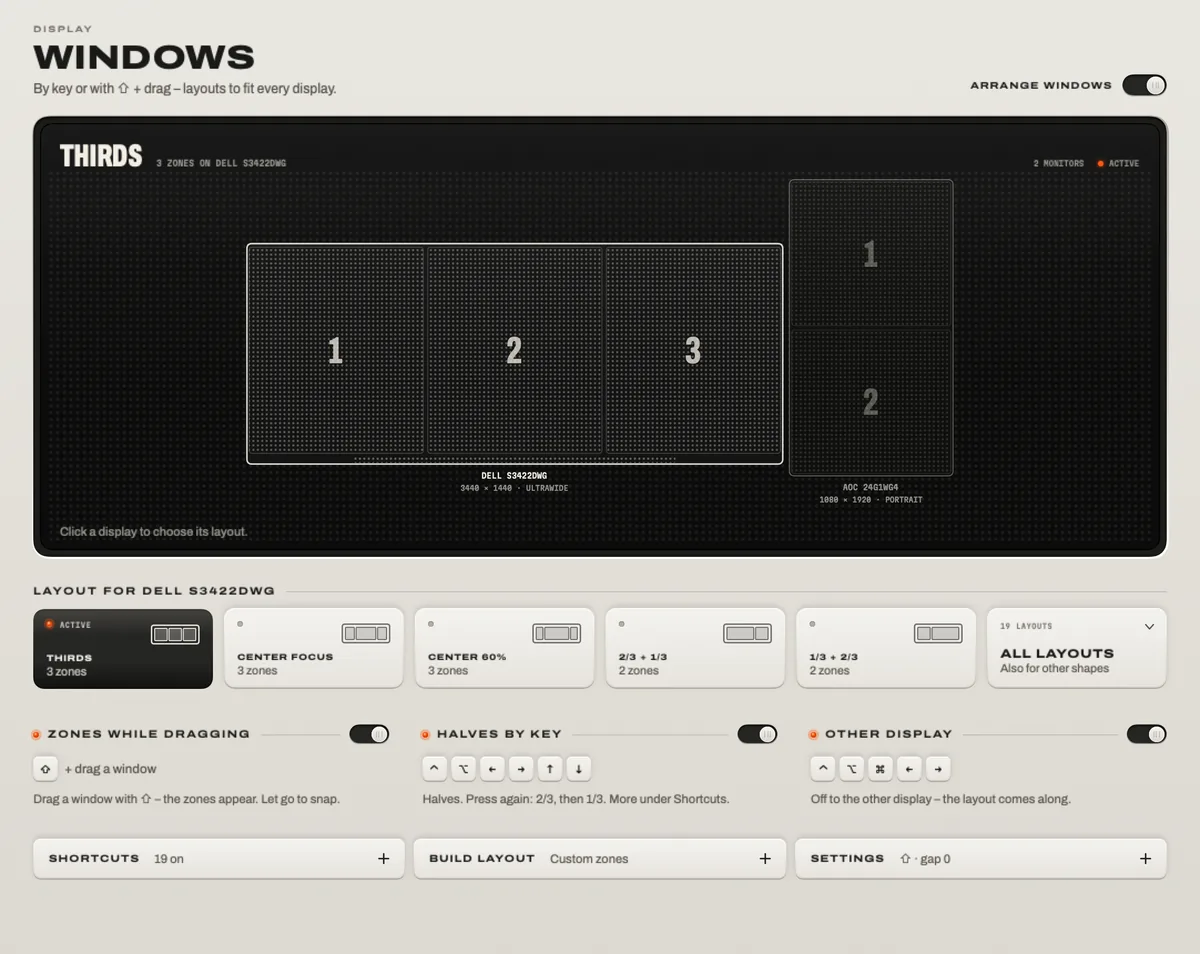
macOS tiles windows into halves and quarters, but an ultrawide wants thirds and a centered column, and a portrait monitor wants rows. TONO’s Windows module snaps windows into layouts that fit each monitor – with Rectangle-style shortcuts, by holding Shift while you drag onto zones, or with a click. Actions turn with the screen: on a portrait monitor, thirds become rows.

Windows
Thirds
Layouts per display: ultrawide, standard and portrait.
TONO 2.3.0macOS 15+Apple siliconProUpdated
Layouts for every monitor shape
TONO sorts each display by shape and offers the layouts that make sense on it first. Pick one per display; TONO remembers it by the monitor, even after you unplug it.
| Monitor | Layouts |
|---|---|
| Ultrawide (21:9, 32:9) | Thirds · Center Focus (¼ · ½ · ¼) · Center 60% · 2/3 + 1/3 · 1/3 + 2/3 · 2/3 + two right · Sixths · Halves · Four Columns (for 32:9) |
| Standard (16:9, 16:10) | Halves · Quarters · Thirds · 2/3 + 1/3 · Left + two right |
| Portrait | Top / Bottom · Three Rows · Top 2/3 + 1/3 · Top + two below · Quarters |
Need something else? Build Layout lets you join and split a grid into your own zones.
Three ways to snap
- Keys. The shortcuts Rectangle users know: Control Option ← Control Option → for halves (press again for 2/3 and 1/3), Control Option D Control Option F Control Option G for thirds, Control Option U Control Option I Control Option J Control Option K for quarters, Control Option Return to fill, Control Option M for a centered column (60%, then 80% and 40%), Control Option Command → to the next display and Control Option Delete to restore.
- Drag. Hold Shift while you drag a window: the zones of your layout appear, drop it into one. Add Command to span two zones.
- Click. TONO draws your monitors to scale; click a zone and the last window you used moves there.
Made for portrait and ultrawide
- On a portrait screen, the thirds keys make rows instead of columns.
- Moving a window to the next display keeps its place in the layout – a left half becomes a top half on a portrait monitor.
- Center 60% gives an ultrawide a comfortable work column with room on both sides; press again for 80% or 40%.
- Gaps between windows, Stage Manager’s strip and the Dock are respected.
Coming from Rectangle?
TONO uses the same keys, so your habits carry over, and Import from Rectangle copies the shortcuts you changed. While Rectangle is running, TONO pauses its window keys so the two never fight. Apps you exclude keep their own shortcuts while they’re in front.
Privacy
Moving other apps’ windows needs macOS’s Accessibility permission, which you grant once. TONO reads each window’s position and size only – never its content or title – and never records the screen.
At a glance
Windows · TONO 2.3.0
- Layouts
- 19 built in for ultrawide, standard and portrait displays · your own grids · one layout per display
- Snapping
- Rectangle-style shortcuts with size cycling · Shift -drag onto zones (Command spans) · click on the monitor picture
- Displays
- Orientation-aware · next or previous display keeps the layout · DisplayLink monitors too
- Switching
- Import from Rectangle · pauses while Rectangle runs · per-app exceptions
- Permission
- Accessibility (position and size only) · never records the screen
- Plan
- TONO Pro · one day free with every download
Free or Pro
Windows is part of TONO Pro – €3.99 a month, €29 a year or €79 once, and TONO starts with one day of Pro on each Mac. The brightness controls for the same monitors are free.
Questions
Doesn’t macOS already snap windows?
macOS 15 Sequoia added tiling into halves and quarters, by dragging to an edge or from the Window menu. TONO adds thirds, sixths and a centered column for ultrawides, rows for portrait monitors, one layout per display, drag zones anywhere on the screen and Rectangle’s keyboard shortcuts.
What’s the best way to manage windows on an ultrawide monitor?
Split it into thirds or use a centered column: a 21:9 or 32:9 screen is too wide for halves. In TONO, pick Thirds, Center Focus or Center 60% for that display, then snap with Control Option D/F/G, Control Option M or by Shift -dragging onto a zone.
Does it work with a vertical (portrait) monitor?
Yes. TONO recognizes portrait screens – DisplayLink monitors included – and offers rows: Top / Bottom, Three Rows and more. The thirds keys make rows there automatically.
Can I keep using Rectangle?
Yes. TONO notices Rectangle and pauses its own window keys while Rectangle runs. If you switch, Import from Rectangle brings your changed shortcuts along.
Why does TONO need Accessibility access?
macOS only lets apps move and resize other apps’ windows with the Accessibility permission. TONO uses it for position and size alone and never reads what’s inside a window.
Turn up your Mac.
Download free. All of Pro for one day. No account.
Download for Mac Hear it first
Free to keepPro from €3.99 a monthmacOS 15+Apple silicon