Feature · Display
Every screen darker than macOS allows
macOS can’t change the brightness of most external monitors, and even the built-in display’s lowest step is bright in a dark room. TONO puts every screen on one slider: external monitors that support DDC/CI get real hardware brightness, any screen can go up to 85% darker than the minimum, and warmth takes out the blue – even without Night Shift. DisplayLink, AirPlay and Sidecar screens are dimmed in software. It’s all in TONO Free.

Brightness
−85%
Below the lowest step macOS allows, on every display.
TONO 2.3.0macOS 15+Apple siliconFreeUpdated
Three ways TONO controls a screen
- The built-in display and Apple displays use macOS’s own brightness control, the same as the brightness keys.
- Most external monitors are controlled over DDC/CI – the monitor’s own backlight, the setting its buttons change – through HDMI, DisplayPort or USB-C. TONO can set their contrast too.
- DisplayLink, AirPlay and Sidecar screens, and monitors that don’t answer DDC, get a software overlay that darkens the picture over the whole range.
You don’t have to know which is which: one slider for all screens, or one per screen, and TONO picks the method. It checks each monitor once and remembers the result.
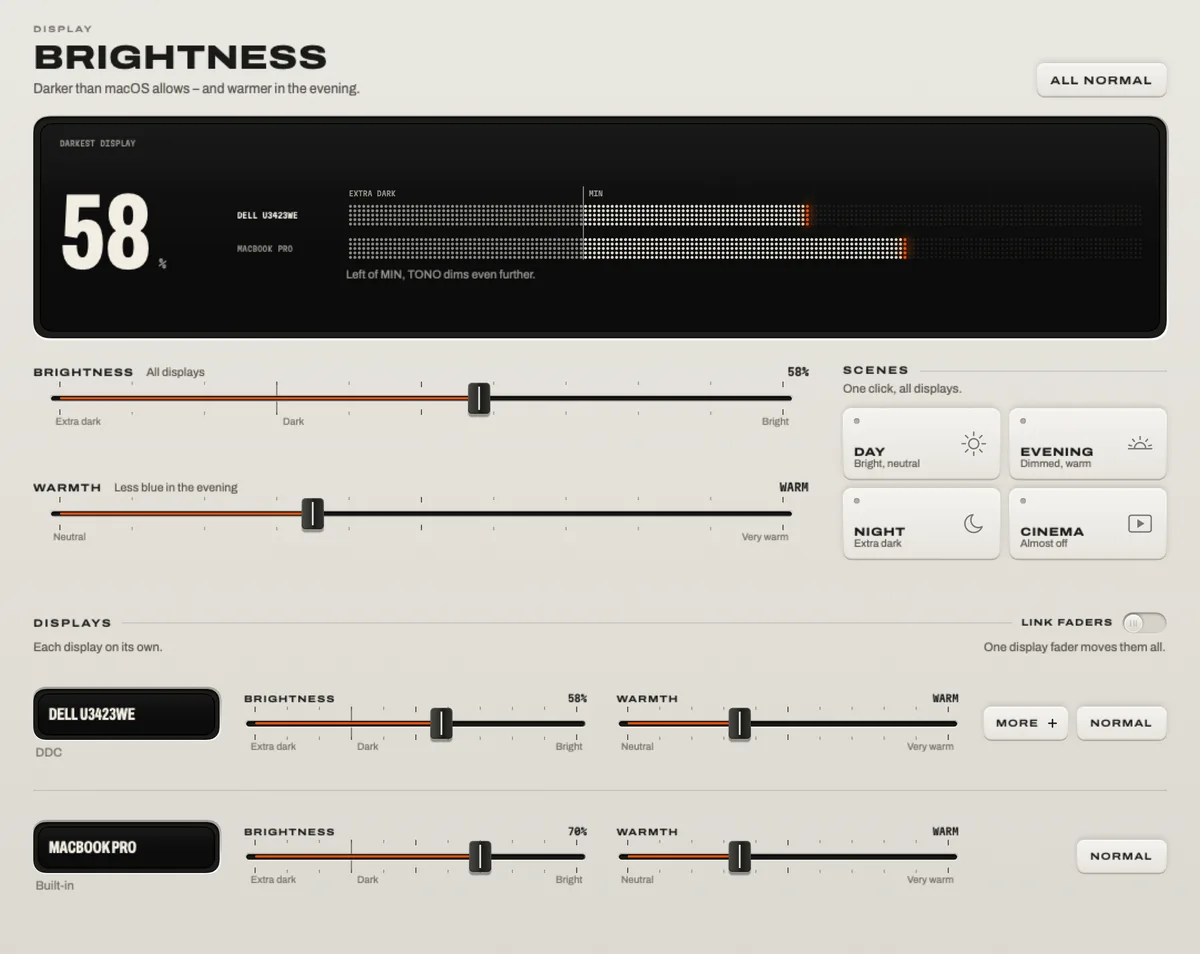
Below the minimum
The lowest 30% of TONO’s slider is extra range. The display’s own brightness stays at its lowest step, and a soft overlay darkens the picture further – up to 85% darker than macOS allows. The overlay covers every Space and full-screen apps too, so late-night reading or editing stays comfortable.
Warmth, with or without Night Shift
Warmth shifts the colors away from blue on every screen, independently of Night Shift. Displays that support color tables are warmed exactly; DisplayLink and other virtual screens get a warm tint, which is an approximation.
Scenes and keys
- Scenes: Day (bright, neutral), Evening (dimmed, warm), Night (extra dark) and Cinema (almost off) – one click for every screen.
- Keys: Control Option Command ↓ and Control Option Command ↑ dim or brighten all screens from any app and keep their differences.
- Automatic (Pro): an Auto Rule can warm the screens from sunset and set them back in the morning.
DisplayLink docks and adapters
A DisplayLink dock hands macOS a virtual display, so there’s no hardware path to the monitor’s backlight. TONO dims these screens with its overlay across the whole range and warms them with a tint – the monitor’s own buttons still set its backlight. Many DisplayLink users set the monitor’s own brightness once to a comfortable level and let TONO handle the rest.
Good to know
- Some monitors have DDC/CI switched off in their on-screen menu, and some docks, KVM switches and adapters don’t pass it through. TONO then falls back to the overlay.
- The software overlay is part of the picture, so it also shows in screenshots and screen recordings of that display.
- Games that take over the display draw above the overlay.
At a glance
Brightness · TONO 2.3.0
- Hardware
- Built-in and Apple displays natively · external monitors over DDC/CI (brightness and contrast)
- Software
- Up to 85% darker than the lowest step · DisplayLink, AirPlay, Sidecar over the whole range
- Warmth
- Color tables where supported, a warm tint elsewhere · independent of Night Shift
- Control
- One slider for all screens or one per screen · scenes Day, Evening, Night, Cinema · Control Option Command ↓ / Control Option Command ↑
- Plan
- TONO Free – doesn’t expire
Free
Brightness is part of TONO Free, together with the equalizer, its 60+ presets and the everyday tools. TONO Pro adds window snapping, Auto Rules and the rest of TONO for €3.99 a month, €29 a year or €79 once.
Questions
Why can’t I change my external monitor’s brightness on a Mac?
macOS controls the brightness of the built-in display and Apple’s own displays. Other monitors expect the computer to send the setting over DDC/CI, which macOS doesn’t do by itself. TONO sends it, so you set those monitors from your Mac instead of their buttons.
Can I make my Mac’s screen darker than the lowest brightness?
Yes. Below macOS’s lowest step, TONO adds a software dimmer that darkens up to 85% further, on the built-in display and on external screens.
Does it work with DisplayLink?
Yes, with the software dimmer and a warm tint. DisplayLink screens don’t offer hardware brightness to macOS, so the monitor’s backlight stays where its own buttons set it.
Is DDC/CI safe for my monitor?
DDC/CI is the standard channel monitors provide for exactly this: TONO changes the same brightness and contrast settings as the monitor’s buttons. You can reset everything to normal in one click.
Is it free?
Yes. Brightness, the extra range below the minimum, warmth and scenes are in TONO Free and don’t expire.
Turn up your Mac.
Download free. All of Pro for one day. No account.
Download for Mac Hear it first
Free to keepPro from €3.99 a monthmacOS 15+Apple silicon