Guide · 3 min read
How to set per-app volume on Mac
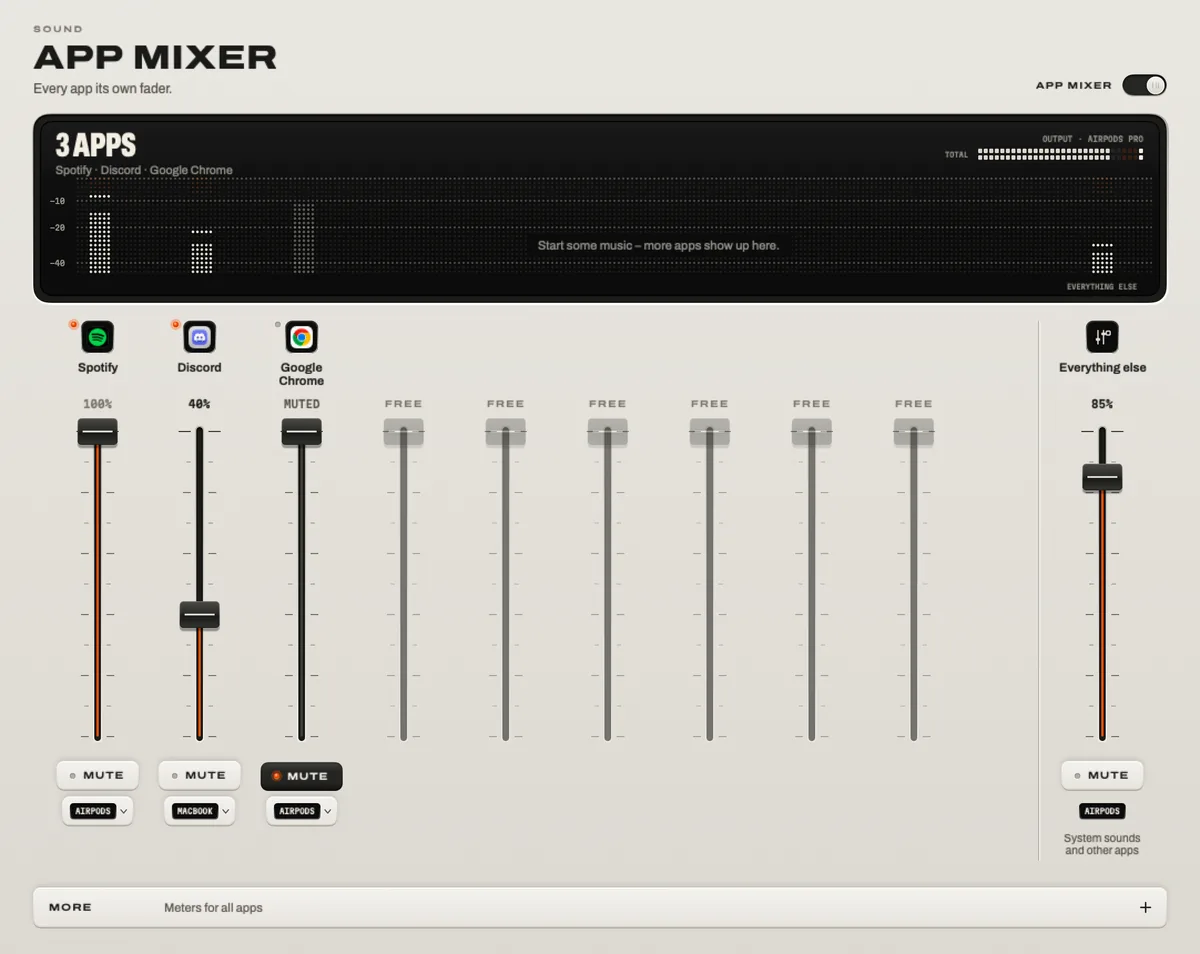
macOS has no per-app volume: the volume keys and Sound settings change everything at once. You can use each app’s own volume control where it has one – Spotify, Discord, a video player – or use an app mixer: in TONO, switch on the App Mixer, and every app that plays gets its own fader, mute key and output.

macOS alone
1 slider
One volume for every app at once. TONO’s App Mixer gives each app its own.
TONO 2.3.0macOS 15+Apple siliconUpdated
Option 1: the apps’ own volume controls
Many apps have a volume slider of their own. It works, but you have to find it in every app:
- Spotify and Apple Music: the volume slider in the player bar.
- Discord: User Settings → Voice & Video → Output Volume for everything, or right-click a person in a voice channel to change just their volume.
- Browsers: mute a noisy tab – in Safari with the speaker icon in the tab, in Chrome by right-clicking the tab and choosing to mute the site.
- Games: usually under Settings → Audio, often with separate music, effects and voice sliders.
What this can’t do: set apps that have no slider, see all levels in one place, or send an app to a different output.
Option 2: an app mixer for every app
- Download TONO and open it. If you haven’t used it before, macOS asks once for “Screen & System Audio Recording” when you switch the sound on.
- Open App Mixer and switch it on. Every app that plays gets a strip with a fader and a level meter. Apps that aren’t playing appear as soon as they make a sound.
- Move the faders. Turn Discord down under the game, or the browser under the music. MUTE silences one app.
- Choose an output per app with the key under the fader: Spotify on the speakers, Discord in your headphones.
- Leave it. TONO remembers each app’s level and output, even while the app is closed. Three strips sit in the menu bar for quick changes.
Example: music on the speakers, the call in your headphones
- In Discord (or Zoom, Teams), set the output device to System default so TONO can route it.
- In TONO’s App Mixer, set Discord’s output to your headphones and Spotify’s output to the speakers.
- Balance the two with their faders. Switch TONO’s sound off for Discord if you want voices untouched by the equalizer.
If something doesn’t show up
- An app is missing: start playback in it – the mixer lists apps that play.
- An app ignores its fader: check whether the app sends its sound to a device of its own choosing in its settings. Set it to the system default and route it in TONO instead.
- “Everything else” shows a note: more apps are playing than the mixer has channels, so the rest play together there.
- A Multi-Output Device: apps that play to a Multi-Output Device from Audio MIDI Setup aren’t processed – pick a real output instead.
Questions
Why doesn’t macOS have per-app volume?
macOS mixes all apps into one output and gives you one volume for it. Apple hasn’t added an app mixer to macOS; apps like TONO add one using the audio interfaces macOS provides.
Do I need a virtual audio device like BlackHole?
No. TONO uses Core Audio process taps, built into macOS since 14.2. Your output stays as it is.
Does per-app volume change the sound quality?
No. A fader only scales the level, in floating point, before TONO’s limiter, so turning an app down doesn’t cost detail.
What happens when I quit TONO?
Every app plays as before, on its original device and at its original volume.
Turn up your Mac.
Download free. All of Pro for one day. No account.
Download for Mac Hear it first
Free to keepPro from €3.99 a monthmacOS 15+Apple silicon